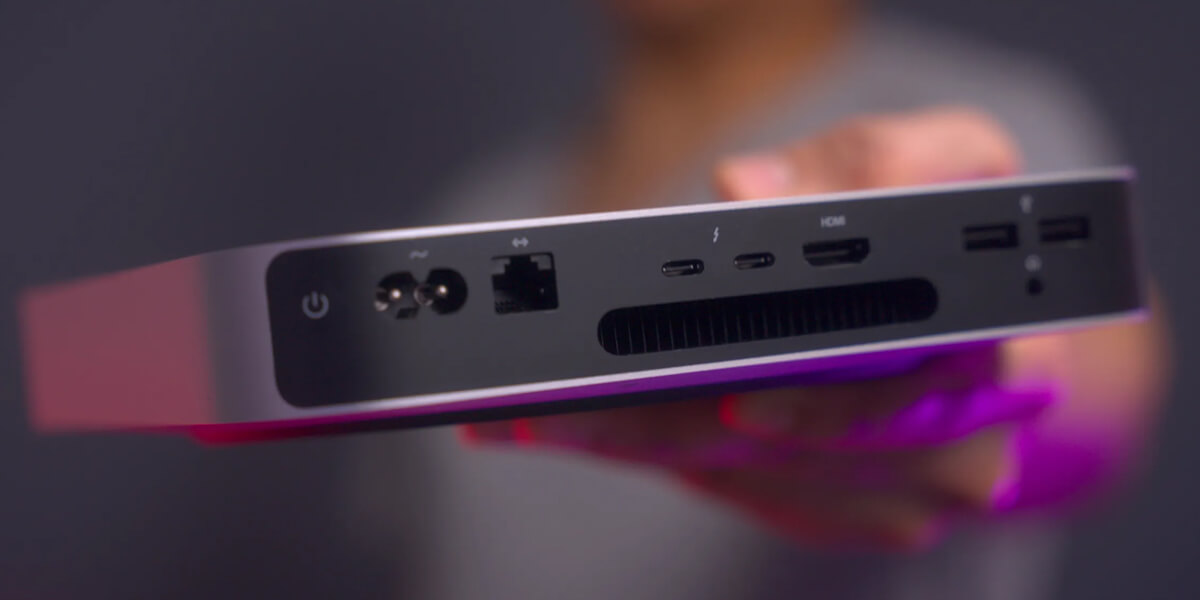
Let’s talk about unleashing the hidden potential of your M-series Mac. While Apple’s silicon is undoubtedly impressive, it’s been living a sheltered life under macOS. Enter Fedora Asahi Remix - a Linux distribution that transforms your M1 Mini into a versatile powerhouse, efficiently handling demanding workloads typically reserved for dedicated production-grade servers.
Ready to see what your M1 can really do? Buckle up as we dive into the how and why of running Linux on Apple Silicon. We’ll explore the substantial performance improvements we’ve observed, and guide you through setting up Fedora Asahi Remix. Join us as we delve into the world where Linux meets Apple Silicon, uncovering performance gains and new possibilities for your M-series Mac.
Why Fedora Asahi Remix?
When it comes to running Linux on Apple Silicon, Fedora Asahi Remix stands out as the go-to distribution. Let’s break down why it’s the top choice for uncorking your M-series Mac’s potential:
Hardware Harmony
Fedora Asahi Remix is a tailor-made Linux solution for Apple Silicon. Born from a collaboration with the Asahi Linux project, it speaks M1 and M2’s ARM language fluently. WiFi, Ethernet, Bluetooth, and other essential hardware components? They’re all on board and ready to roll.
Native Performance Boost
By running Linux directly on the hardware, we’re cutting out the MacOS middleman. This means all of your M1’s resources are dedicated to actual work, not emulation gymnastics or background MacOS processes.
Hassle-Free Setup
Nobody likes a complicated installation process. The Fedora Asahi Remix installer script does the heavy lifting, so you dont have to fiddle with drivers or other boilerplate.
Superior Server OS
Linux outshines macOS for server operations due to its resource efficiency, extensive customization options, and powerful command-line interface. Its open-source nature ensures rapid improvements and security updates, while allowing the lowest level of control over your hardware.
Bare-Metal Linux: A Performance Game-Changer
Our journey with WorkHub.so began on macOS, using Docker Desktop for containerization. However, as we scaled beyond the proof-of-concept phase, we encountered significant limitations. A switch to Colima alleviated some issues, but the overhead of running macOS and virtualization of Docker continued to constrain our system’s potential.
The transition to bare-metal Linux on our M1 Mac Mini unlocked a new level of performance:
- Resource Utilization: Without macOS and virtualization layers, we gained full access to our hardware. This more than doubled our usable RAM and significantly improved CPU efficiency.
- Native Docker Integration: Linux’s seamless Docker support eliminated the compatibility issues and performance bottlenecks we faced with macOS.
- Scalability Boost: With the additional system resources at our disposal, we could spin up multiple instances of the WorkHub.so SSR frontend and node.js backend applications, better distributing load across all available CPU cores. With the freed up resources we were also able to setup a complete self-hostedmonitoring stack with Grafana.
The results were striking. Our load tests, previously capped at around 400 queries per second (QPS), now soared to over 1600 QPS - over a 4x performance improvement.
This leap in performance underscores the advantages of running Linux directly on Apple Silicon for server workloads. It allows you to unlock the full potential of your hardware.
         /\      Grafana   /‾‾/
    /\  /  \     |\  __   /  /
   /  \/    \    | |/ /  /   ‾‾\
  /          \   |   (  |  (‾)  |
 / __________ \  |_|\_\  \_____/

     execution: local
        script: dist/test.js
        output: -

     scenarios: (100.00%) 2 scenarios, 2500 max VUs, 2m50s max duration (incl. graceful stop):
              * typeahead: Up to 2500.00 iterations/s for 2m50s over 2 stages (maxVUs: 500-2500, exec: typeaheadTest, gracefulStop: 30s)
              * ssr: Up to 2500.00 iterations/s for 1m10s over 3 stages (maxVUs: 500-2500, exec: ssrTest, gracefulStop: 30s)

     ✓ status is 200
     ✓ response time < 2s
     ✓ valid response

     checks.........................: 100.00% 343128 out of 343128
     data_received..................: 409 MB  5.7 MB/s
     data_sent......................: 20 MB   284 kB/s
     dropped_iterations.............: 22823   320.146625/s
     http_req_blocked...............: avg=224.67µs min=0s       med=3µs      max=98.21ms  p(90)=8µs      p(95)=10µs
     http_req_connecting............: avg=218.46µs min=0s       med=0s       max=98.18ms  p(90)=0s       p(95)=0s
   ✓ http_req_duration..............: avg=335.2ms  min=7.42ms   med=383.06ms max=834.07ms p(90)=604.71ms p(95)=627.39ms
       { expected_response:true }...: avg=335.2ms  min=7.42ms   med=383.06ms max=834.07ms p(90)=604.71ms p(95)=627.39ms
   ✓ http_req_failed................: 0.00%   0 out of 214376
     http_req_receiving.............: avg=63.6ms   min=24µs     med=44.7ms   max=305.34ms p(90)=159.58ms p(95)=188.58ms
     http_req_sending...............: avg=41.25µs  min=2µs      med=11µs     max=14.13ms  p(90)=35µs     p(95)=95µs
     http_req_tls_handshaking.......: avg=0s       min=0s       med=0s       max=0s       p(90)=0s       p(95)=0s
     http_req_waiting...............: avg=271.56ms min=7.29ms   med=285.84ms max=833.96ms p(90)=515.11ms p(95)=548.07ms
     http_reqs......................: 114376  1704.39/s
     iteration_duration.............: avg=2.44s    min=933.74ms med=2.65s    max=3.78s    p(90)=3.39s    p(95)=3.48s
     iterations.....................: 54706   416.697001/s
     vus............................: 97      min=10               max=2500
     vus_max........................: 2500    min=500              max=2500


running (1m11.3s), 0000/1500 VUs, 29706 complete and 0 interrupted iterations
typeahead ✓ [======================================] 0000/2500 VUs  2m50s  0008.66 iters/s
ssr ✓ [======================================] 0000/2500 VUs  1m10s  0008.66 iters/s
* Reenactment of me reading the k6 load test results
Pros and Cons of Bare-Metal Linux on M1
Since we’re using the M1 as a server, many of these cons are irrelevant (like touch id, audio drivers, battery life, etc).
| Pros | Cons |
|---|---|
| Full access to hardware resources (CPU, RAM) | Limited GPU acceleration (no Vulkan support yet). |
| Native Docker support with improved performance | Battery life is shorter compared to macOS. |
| Open-source flexibility and customizability | Some peripherals (e.g., Touch ID, Thunderbolt) lack full support. |
| High compatibility with development tools | Audio drivers and external display support are still evolving. |
| Reduced system overhead compared to virtualized solutions | Installation requires repartitioning and may void AppleCare warranties. |
Evaluate If Linux is Right for You
If you’re considering installing Linux on an M-series Mac Mini, there are a few important factors to keep in mind.
- Fedora Asahi Remix officially supports M1 and M2 chips but may not yet have full support for newer models like the M3 or M4.
- Installing native Linux could void your Mac’s warranty—something worth verifying before proceeding if that concerns you.
- If you decide Linux isn’t for you, it’s possible to revert back to macOS by repartitioning the hard drive back to 100% allocation to the macOS partition.
- Fedora Asahi Remix uses Fedora-specific commands, which may require some adjustment if you’re accustomed to other Linux distributions.
How to Install Fedora Asahi Remix
Installing Fedora Asahi Remix is easier than you might think:
Step 1: Prepare Your Mac
- Ensure your Mac is running macOS 13.5 or later.
- Free up at least 30GB of storage space for Linux.
Step 2: Run the Installer Script
Open Terminal in macOS and execute:
curl https://fedora-asahi-remix.org/install | sh
Follow the prompts to resize partitions and install Fedora Asahi Remix.
Step 3: Reboot into Fedora
After installation, reboot while holding down the power button to access the boot menu. Select Fedora Asahi Remix as your startup volume.
Step 4: Post-Installation Setup
Once booted into Fedora:
- Update packages using
sudo dnf update. - Configure additional drivers or software as needed.
Final Thoughts
Switching your M1 Mac to bare-metal Linux is a game-changer for developers seeking maximum performance and flexibility. While some features like GPU acceleration are still maturing, the benefits far outweigh the trade-offs for most use cases. Particularly if you are trying to use an M-series mac as a dedicated server, this is a great way to get the most out of your hardware.
If you’re curious about unlocking your M1’s full potential, give Fedora Asahi Remix a try. Whether you’re a developer looking for better Docker performance or just exploring what Linux can do on Apple Silicon, this setup delivers.